Tuesday, June 10, 2014

How to Overcome Internet Download Manager (IDM) Fake Serial Number

internet download manager


Sometimes we often encounter problems when downloading a file. One of them is a fake serial number contained in the IDM that sometimes makes us a little annoyed that we file downloads to fail. At this time I will help you overcome the problem of fake serial number in IDM.

The steps are as follows:


internet download manager has been registered with a fake serial number

1.  Advance Uninstall your IDM

2. Upon completion in uninstall go into regedit menu by clicking Start -> Run -> type "regedit" -> click OK

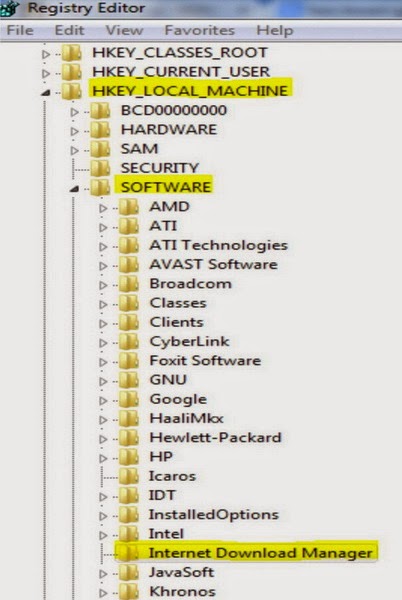
3. Then looking at HKEY_LOCAL_MACHINE -> SOFTWARE -> Internet Download Manager.

internet download manager registry editor

4. Then delete the folder of Internet Download Manager.

5. Close the editor and then restart your computer

6. Then reinstall your IDM along with serial key you used previously.

7. Good luck...

Tuesday, June 3, 2014

How Storage Password In Browser

google chrome, mozilla firefox


Sometimes we often forget the name with a password . We often use passwords to log into an account that we have and if we forgot our own password then we have the account can not be used. For that I will give way to store passwords in the browser . Start of storing , viewing and also remove the password on the browser we use like google chrome and mozilla firefox .


Google Chrome

1. How to store passwords in Google Chrome

  • To store passwords in Google Chrome , you need to do is log into websites that require a password to log into the website . Suppose you enter in your email when you click enter it will display a dialog box and click " Save Password " then your password will be stored .

google chrome to save your password

2. How to view password on Google Chrome
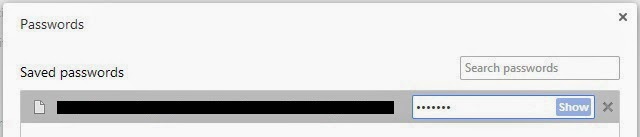
  • To see the stored passwords in Google Chrome do is click the "Customize and control Google Chrome " then select and click on " Settings " . Once the settings page appears , click " Show advanced settings ... " . In the " Passwords and forms" , click "Manage saved passwords " . Then click " Show" then your password will be displayed .

saved password view google chrome

3. How to remove password on Google Chrome
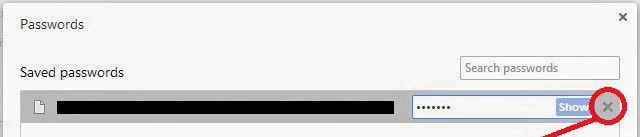
  • To remove the password stored in Google Chrome , the same steps by way of fatherly look that password . You just need to click the x mark on the right of the "Show " and your password will be erased .

remove password google chrome


Mozilla Firefox

1. How to store passwords in Mozilla Firefox

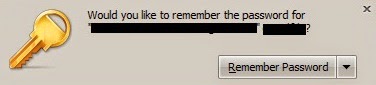
  • To save passwords on Mozilla Firefox is quite easy , you need to do is log into websites that require a password to log into the website . Suppose you enter in your email when you click enter it will display a dialog box " Would you like to remember the password for" email address " and then you can click on the" Remember Password " assword then you will be automatically saved

mozilla firefox to save your password


2. How to view passwords on Mozilla Firefox

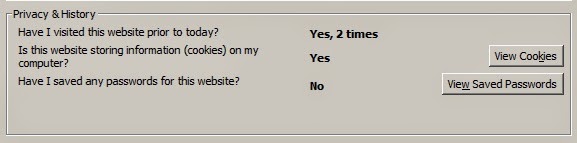
  • To see the passwords that have been stored in Mozilla Firefox , how is the world symbol icon or click the padlock symbol on the left of the web address above , then click " More Information ... " . Then you click the " View Saved Password " in Privacy and History . Then click " Show Password " and click " Yes " , then your password will be displayed .
saved password view mozilla firefox


3. How to remove passwords on Mozilla Firefox

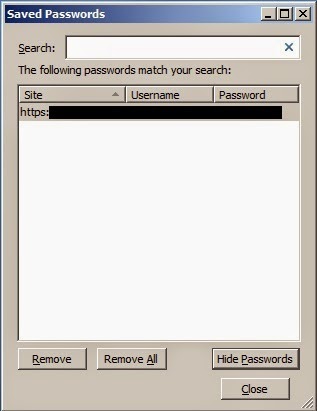
  • To remove the password that has been stored in Mozilla Firefox , do the same with a way to see passwords on Mozilla Firefox above . The trick is to click your password and click " Remove" or " Remove All " to remove all passwords .
remove password mozilla firefox

Saturday, May 24, 2014

How to Run Android Applications in Computer / Laptop

run android applications in computer/laptop

Most of us must have been familiar with the android operating system . OS used on the phone is very familiar among the community . On this occasion I will share how to keep existing applications on our mobile phones can also be run on a computer / laptop .

We will use the 4 applications that can help install and run on a computer / laptop :

1 . Android SDK


emulator android sdk

 Android SDK is the Android simulator that can be installed on Windows OS XP/VISTA/7/8 , so it can install a variety of android applications in the Android SDK , without having to have our android based mobile phone to run on Windows selanyaknya Android .

2 . Bluestacks


emulator android bluestacks

 Bluestack an application Emulator Multi Operating System ( OS ) that has the ability to operate like mobile phones like android . With this Android Emulator friend can easily install the software smartphone into a computer / laptop . Almost all android applications can be installed on a PC using the software support , including popular apps such as WhatsApp , Kakao Talk , We Chat , Instagram , Line Chat , BBM and many others .


 3 . Youwave

emulator android youwave

Youwave is a software / app useful for running the android application on your PC / Laptop us . This software is commonly called the Android Emulator . With this software you can run millions of android apps and also you can add / install a new program on the android platform computer / laptop


4 . Genymotion
emulator android genymotion
Genymotion Android emulator is an application where you can run Android applications on your computer . By using Genymotion you can try a free Android application on your computer . Genymotion has fast performance that is not troublesome when used .

You can use the one from the 4th application support / emulator to be used in computer / laptop .

Good luck ...

Wednesday, May 21, 2014

How to Fix Restart and Shutdown Problems in Windows 8

How to Fix Restart and Shutdown Problems in Windows 8


Sometimes we often encounter problems of windows that we use, ranging from mild and severe, such as restart and shutdown problems in windows. On this occasion I will give you a way to fix the problem I discuss in particular the windows about windows 8.

The steps are as follows:
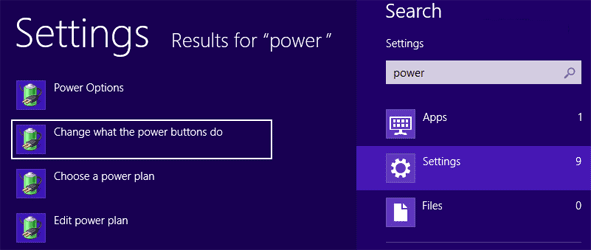
  • Log into the power settings by pressing Windows + Q and type in power and select settings then click on the left "Change what the power buttons do"

Change what the power buttons do


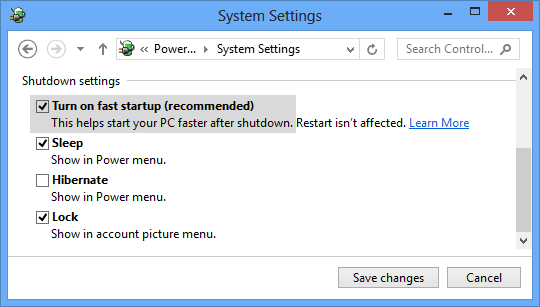
  • Then system settings window will open. See also the option "Turn on fast startup (recommended)" given in section Shutdown settings as shown in the following figure:

Turn on fast startup (recommended)

  • Then disable the options by eliminating the image above centangan boxed tick and then click the "Save Changes"
  •  Then restart Windows 8

Good luck ...

Friday, May 16, 2014

Computer Hardware Problems


As we know that every computer or laptop must have had different problems , ranging from software problems or hardware.Terkadang our own until dizzy created by the problem. Therefore here I will deal with the problem that occurred 5 and also the possibility that that might happen if we can take our laptop computer experiencing the problem.

Here are 5 types of problems and solutions that may be taken :
 
1 . The Computer / Laptop Dead .

When we attach the AC adapter to the computer / laptop , no lights are alive at all and when we press the power button , also no reaction occurred . computer / laptop seems totally dead , no sound and no indication of life .

Possibilities occur :

  • AC adapter and the battery runs completely failed . Test the AC adapter . If it dies , then you have to replace the adapter .
  • DC jack apart from the motherboard ( or DC jack broken ) and the laptop does not derive power from the AC adapter . The jack must then be replaced .
  • Laptop Motherboard damaged . If that happens , most likely not worth repaired laptop .

2 . Computer / Laptop Turns But Blank Screen

LED lights that are on the computer / laptop is on, the cooling fan is working but nothing appears on the screen . The screen is completely black and blank . No images on the screen at all .

Possibilities occur :

  • This problem can be attributed to a failure of memory . Perhaps the failure of memory modules and computer / laptop does not turn on because of it. In this case you can try reseating the memory modules to ensure good contact with the slot . You can try to remove the memory modules one at a time and test the computer / laptop with only one memory module installed . You can try replacing the memory module with a new module .

  • If reseating / replacing the memory module does not help , try to remove the hard drives , DVD drives , modems , wireless card , keyboard , etc. . In other words , loading the computer / laptop and installed only minimal equipment and test again . If the computer / laptop is still not lit well , then most likely the motherboard or processor failure .

3 . Computer / Laptop And Then Turns Off .

Computer / laptop turn on without showing any image on the monitor screen . After a few seconds the computer / laptop will shut itself down . Then on and off again . It keeps going until the computer / laptop we turn off completely .

Possibilities occur :

Most likely it happens because of some kind of motherboard failure . You can try reseating / replacing the memory as I described in problem 2 . If it does not help , then the damage occurred on the motherboard . If problems occur the motherboard that is very hard to fix it , you better buy a computer / laptop recently .

4 . The Computer / Laptop Removing Noise .

Computer / laptop turns on and everything worked fine , but he made ​​some peculiarities that noise loud enough

Possibilities occur :

In most cases , this noise coming from the cooling fan or the hard drive of computer / laptop . You can turn on the laptop , wait until the voice came again and then listen carefully to the bottom of the laptop . If the laptop makes noise when the cooling fan starts running , most likely broken . Replace the cooling fan . If the laptop makes the sound even when the fan is not spinning , maybe it comes from the hard drive . Back up all personal data from the hard drive as soon as possible , the total damage may occur at any time . Replace the hard drive .


5 . Computer / Laptop Loss and Then Off When Being Used .

Computer / Laptop is up and running properly , but after a while hangs directly or die without any warning . When that happens , the laptop was hot at the bottom . Also , the cooling fan is working harder than usual .

Possibilities occur :

Most likely this is a hot issue processor . This occurs because the cooling module is clogged with dust and the laptop can not " breathe " properly . Laptop turned off or jammed because the processor ( CPU ) is too hot . Clean the cooling fan and heatsink to fix the problem .

Similarly, 5 types of problems that often occur in the computer / laptop and hopefully we can sort it out by itself .

Good luck.....


Friday, May 9, 2014

How to Check Office 2013 Activation Status

microsoft office 2013


Many of us who still do not know the fact that we use microsoft office is already activated whether permanently or just take only 30 days.  For me this was the article will help us all to know the status of activation microsoft office 2013 that we run on our laptop or computer.

The steps are as follows :
  1. Open the application Run Command Prompt with Administrator level. Or to be more quickly by using a key (Windows + R) and type "cmd"
  2. Next type in cmd "CD C: \ Program Files \ Microsoft Office \ Office15 \" then enter. 
  3. Then type the command "cscript ospp.vbs / dstatus". 
  4. Wait for the process, then you will see the activation and license status of your Office 2013.

activation status microsoft office 2013

Good luck......

Friday, May 2, 2014

How to Solve Error Generic Host For Win32 (svchost.exe)

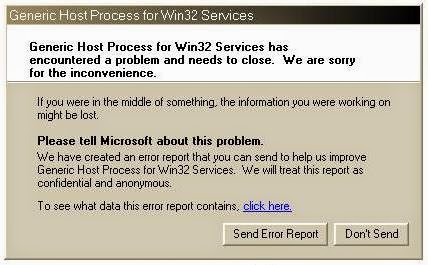
generic host process for win32 services


If your computer / laptop has an error generic host for win32 then follow the steps as follows:

  • Open the registry editor by Start >> Run >> type "regedit" >> Ok
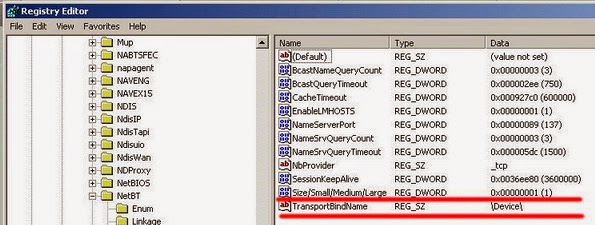
  • Then go to HKEY_LOCAL_MACHINE \ System \ CurrentControlSet \ Services \ NetBT \ Parameters and select TransportBindName are on the right and double click 
HKEY_LOCAL_MACHINE \ System \ CurrentControlSet \ Services \ NetBT \ Parameters
  • After that clear the parameter in the Value data and click OK
  • Then go to HKEY_LOCAL_MACHINE \ Software \ Microsoft \ OLE and select EnableDCOM are on the right and double click.

HKEY_LOCAL_MACHINE \ Software \ Microsoft \ OLE
  • After that the Value data field parameters will be loaded by default Y, then change the Y to N and then click OK.
  • Then restart the computer / laptop
  • Good luck.....

How to Get Background Spotlight in Windows 10

How to Get Background Spotlight in Windows 10 Good morning... On this occasion I will give a tutorial " How to Get Background Spotlight...