Friday, June 27, 2014

How to Combine Files Documents In Microsoft Word 2013

microsoft word 2013


I created this article originated from an assignment given to me which is composed of several reports that document all of it must be combined into one document file. For that I share with readers who may not know how to combine multiple files into one file documents in Microsoft Word 2013 document.

The steps are as follows :

    • Open Microsoft Word 2013
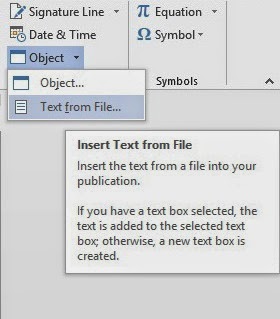
    • Next select the Insert menu tab and select the down arrow icon located on the object and choose Text From File
    insert from microsoft office 2013


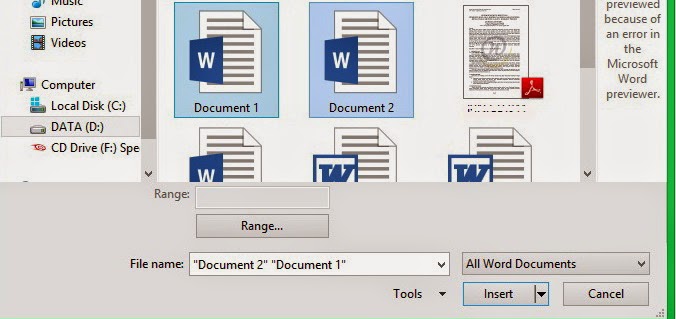
    • Then find and select the document file you want to join and then click insert


    combine file document 1 and document 2

    Good luck...

    Monday, June 23, 2014

    Error System Fan On Laptop

    error system fan on laptop


    Sometimes we are often distracted when we're doing work or chores and playing games all of a suddenly we use the laptop turns itself off and the fan is not spinning. The one that makes our laptop suddenly turns itself off sometimes because there is a fan on the system error (908) that occurred on our laptops. This time I will provide a solution that we can take if you experience these problems.

    The steps are:
    1. Shut down your laptop first and dab fan with needle
    2. When the needle poke fan, turn it clockwise, if the fan means a fan of heavy dusty. Play continues slowly until it feels lighter.
    3. Subsequently inflatable air exhaust fan in the hole, or you can also use a vacuum cleaner with a laptop.
    4. After that turn your laptop back and listen if the fan is spinning, if it spun back, certain "fan system error (908)" will no longer appear when the laptop is powered on.

    Good luck ...

    Wednesday, June 18, 2014

    How to Backup and Restore Windows 8 Activation Key Genuine

    backup and restore windows 8 activation key genuine


    Sometimes we use windows 8 having problems such as a virus so we had the windows activation before becoming a trial again. For that in this article I will share how to backup and restore activation so that windows 8 we did not trial again.


    The steps are as follows:

    • Backup activation windows 8:
    1. Setting all hidden files to be seen by way of the Control Panel >> Folder Options >> View >> Select Show hidden files items, folders, and drives >> Apply >> OK.
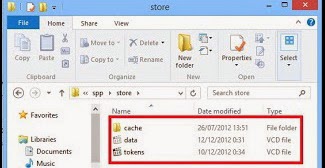
    2. Then go to drive C: \ Windows | System32 \ spp Store will display a folder and then copy that folder on another drive.

    backup activation windows 8


    • Restore activation windows 8:
    1. Reinstall back your Windows 8.
    2. Then go to command prompt >> run as administrator then type slmgr-upk. This is done to change the status of the uninstall key so to Unlicenshed. 
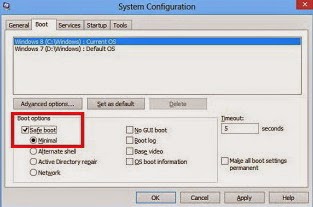
    3. Then restart the computer / laptop and go into Safe Mode. by way of  type msconfig in the Search box >> Enter >> Boot >> tick Safe boot >> Minimally >> Apply >> OK and restart your computer / laptop 

    4. restore windows 8 with safe mode

    5. Upon restart and go into Safe Mode, go to the command promt >> Run as administrator >> type net stop to stop the service sppsvc Software Protection Platform 
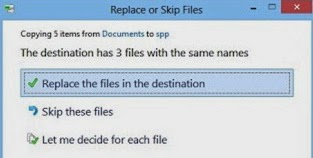
    6. Then go back into drive C: \ Windows \ System32 \ spp, copy and paste the folder Store the last backup folder >> click Replace the files in the destination 

    7. copy paste file to drive c: folder store

    8. Then type msconfig in the Search >> Boot >> uncheck Safe boot >> Apply >> Ok and restart your computer / laptop 
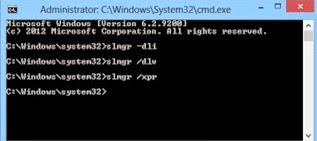
    9. Then check at the command prompt by typing: 
      • Slmgr-dli
      • Slmgr / dlv 
      • Slmgr / xpr
    check cmd activation

    Good luck......

    Tuesday, June 10, 2014

    How to Overcome Internet Download Manager (IDM) Fake Serial Number

    internet download manager


    Sometimes we often encounter problems when downloading a file. One of them is a fake serial number contained in the IDM that sometimes makes us a little annoyed that we file downloads to fail. At this time I will help you overcome the problem of fake serial number in IDM.

    The steps are as follows:


    internet download manager has been registered with a fake serial number

    1.  Advance Uninstall your IDM

    2. Upon completion in uninstall go into regedit menu by clicking Start -> Run -> type "regedit" -> click OK

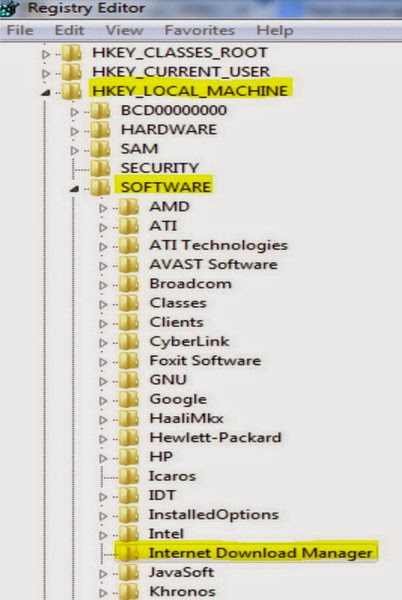
    3. Then looking at HKEY_LOCAL_MACHINE -> SOFTWARE -> Internet Download Manager.

    internet download manager registry editor

    4. Then delete the folder of Internet Download Manager.

    5. Close the editor and then restart your computer

    6. Then reinstall your IDM along with serial key you used previously.

    7. Good luck...

    Tuesday, June 3, 2014

    How Storage Password In Browser

    google chrome, mozilla firefox


    Sometimes we often forget the name with a password . We often use passwords to log into an account that we have and if we forgot our own password then we have the account can not be used. For that I will give way to store passwords in the browser . Start of storing , viewing and also remove the password on the browser we use like google chrome and mozilla firefox .


    Google Chrome

    1. How to store passwords in Google Chrome

    • To store passwords in Google Chrome , you need to do is log into websites that require a password to log into the website . Suppose you enter in your email when you click enter it will display a dialog box and click " Save Password " then your password will be stored .

    google chrome to save your password

    2. How to view password on Google Chrome
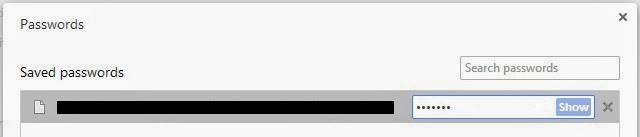
    • To see the stored passwords in Google Chrome do is click the "Customize and control Google Chrome " then select and click on " Settings " . Once the settings page appears , click " Show advanced settings ... " . In the " Passwords and forms" , click "Manage saved passwords " . Then click " Show" then your password will be displayed .

    saved password view google chrome

    3. How to remove password on Google Chrome
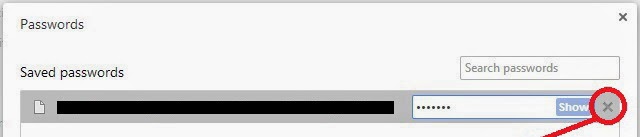
    • To remove the password stored in Google Chrome , the same steps by way of fatherly look that password . You just need to click the x mark on the right of the "Show " and your password will be erased .

    remove password google chrome


    Mozilla Firefox

    1. How to store passwords in Mozilla Firefox

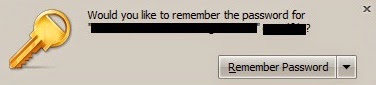
    • To save passwords on Mozilla Firefox is quite easy , you need to do is log into websites that require a password to log into the website . Suppose you enter in your email when you click enter it will display a dialog box " Would you like to remember the password for" email address " and then you can click on the" Remember Password " assword then you will be automatically saved

    mozilla firefox to save your password


    2. How to view passwords on Mozilla Firefox

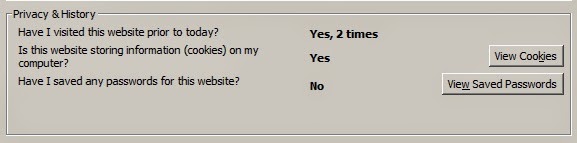
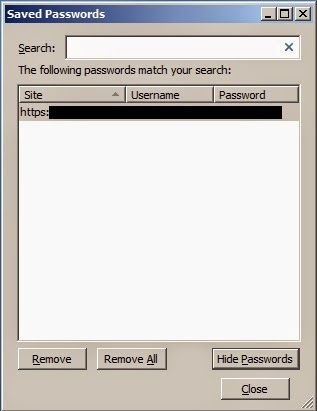
    • To see the passwords that have been stored in Mozilla Firefox , how is the world symbol icon or click the padlock symbol on the left of the web address above , then click " More Information ... " . Then you click the " View Saved Password " in Privacy and History . Then click " Show Password " and click " Yes " , then your password will be displayed .
    saved password view mozilla firefox


    3. How to remove passwords on Mozilla Firefox

    • To remove the password that has been stored in Mozilla Firefox , do the same with a way to see passwords on Mozilla Firefox above . The trick is to click your password and click " Remove" or " Remove All " to remove all passwords .
    remove password mozilla firefox

    Saturday, May 24, 2014

    How to Run Android Applications in Computer / Laptop

    run android applications in computer/laptop

    Most of us must have been familiar with the android operating system . OS used on the phone is very familiar among the community . On this occasion I will share how to keep existing applications on our mobile phones can also be run on a computer / laptop .

    We will use the 4 applications that can help install and run on a computer / laptop :

    1 . Android SDK


    emulator android sdk

     Android SDK is the Android simulator that can be installed on Windows OS XP/VISTA/7/8 , so it can install a variety of android applications in the Android SDK , without having to have our android based mobile phone to run on Windows selanyaknya Android .

    2 . Bluestacks


    emulator android bluestacks

     Bluestack an application Emulator Multi Operating System ( OS ) that has the ability to operate like mobile phones like android . With this Android Emulator friend can easily install the software smartphone into a computer / laptop . Almost all android applications can be installed on a PC using the software support , including popular apps such as WhatsApp , Kakao Talk , We Chat , Instagram , Line Chat , BBM and many others .


     3 . Youwave

    emulator android youwave

    Youwave is a software / app useful for running the android application on your PC / Laptop us . This software is commonly called the Android Emulator . With this software you can run millions of android apps and also you can add / install a new program on the android platform computer / laptop


    4 . Genymotion
    emulator android genymotion
    Genymotion Android emulator is an application where you can run Android applications on your computer . By using Genymotion you can try a free Android application on your computer . Genymotion has fast performance that is not troublesome when used .

    You can use the one from the 4th application support / emulator to be used in computer / laptop .

    Good luck ...
    Wednesday, May 21, 2014

    How to Fix Restart and Shutdown Problems in Windows 8

    How to Fix Restart and Shutdown Problems in Windows 8


    Sometimes we often encounter problems of windows that we use, ranging from mild and severe, such as restart and shutdown problems in windows. On this occasion I will give you a way to fix the problem I discuss in particular the windows about windows 8.

    The steps are as follows:
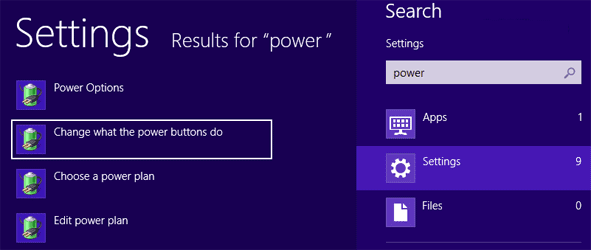
    • Log into the power settings by pressing Windows + Q and type in power and select settings then click on the left "Change what the power buttons do"

    Change what the power buttons do


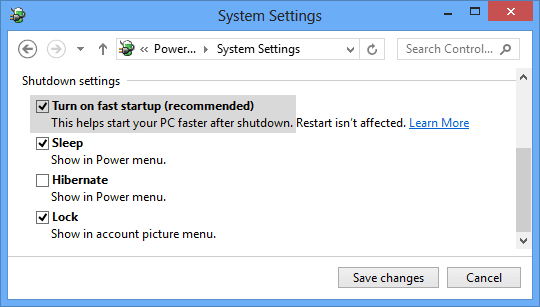
    • Then system settings window will open. See also the option "Turn on fast startup (recommended)" given in section Shutdown settings as shown in the following figure:

    Turn on fast startup (recommended)

    • Then disable the options by eliminating the image above centangan boxed tick and then click the "Save Changes"
    •  Then restart Windows 8

    Good luck ...
    How to Get Background Spotlight in Windows 10

    How to Get Background Spotlight in Windows 10 Good morning... On this occasion I will give a tutorial " How to Get Background Spotlight...